How to watch your home country’s TV abroad in 2026
You move, and the television stops being yours. The news is in a language your parents do not speak, the football is…
Read the guideThe Firestick is the most common IPTV device in the world, and also the most commonly misconfigured one. This is the exact order we walk people through in support: ten minutes to install, and five settings afterwards that decide whether your picture is sharp or stuttering.
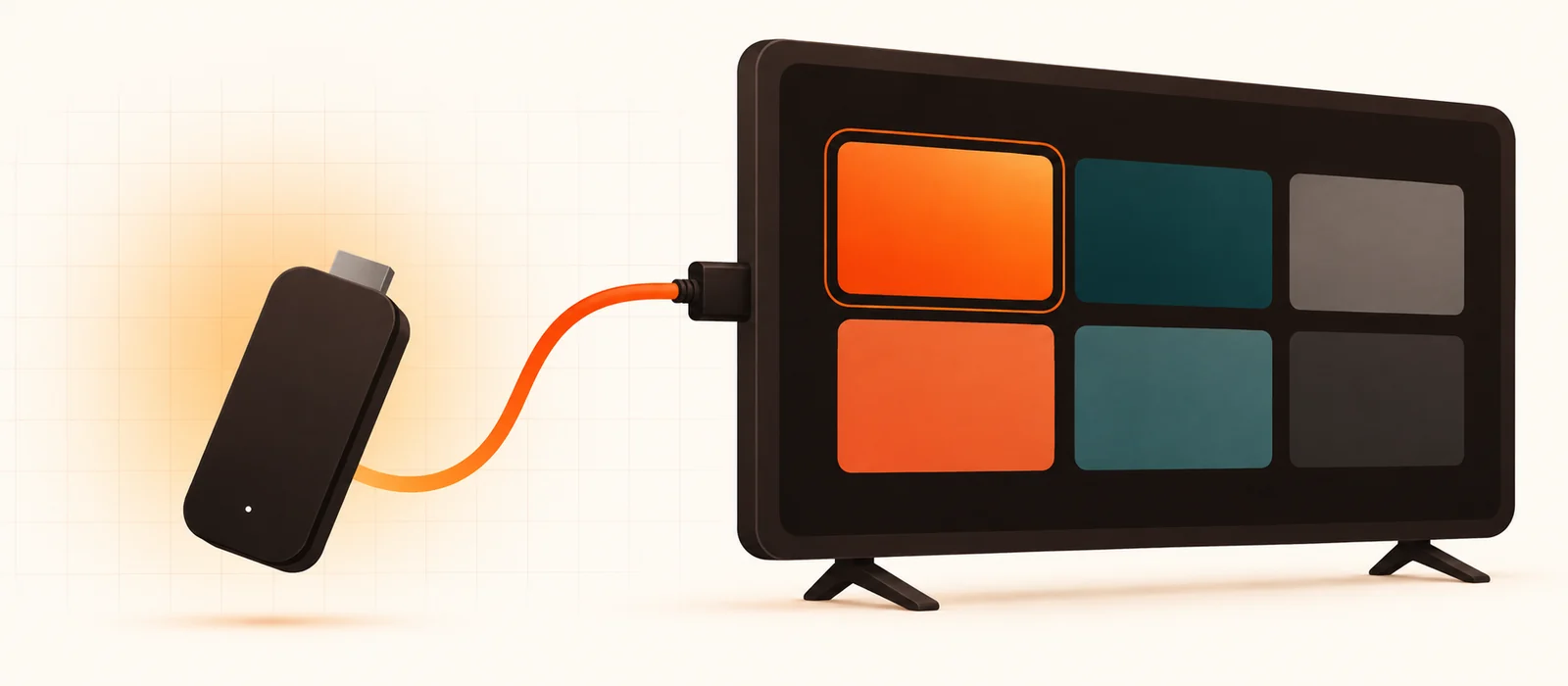
An Amazon Fire TV Stick costs less than a month of most cable packages, plugs into any HDMI port, and runs a version of Android underneath the Amazon interface. That last part is the whole reason it dominates IPTV: you can install apps Amazon does not carry in its store, and every serious IPTV player is one of those apps.
What follows works on every current model — the Fire TV Stick Lite, the standard 4K, the 4K Max and the Fire TV Cube — and on the older 2nd and 3rd generation sticks too. The menu wording shifts slightly between Fire OS versions; where that happens, we say so.
Three things need to be true, and it is worth checking them now rather than halfway through:
Message your own WhatsApp or email with the username, password and server URL before you begin. Typing an IPTV password with a directional pad is where most “invalid credentials” tickets come from — pasting removes the entire problem.
Fire OS blocks installs from outside the Amazon Appstore until you say otherwise. This is a normal setting, not a hack, and it does not root the device or affect your warranty.
While you are in Developer options, leave ADB debugging switched off. Nothing in this guide needs it, and leaving it on is an unnecessary open door.
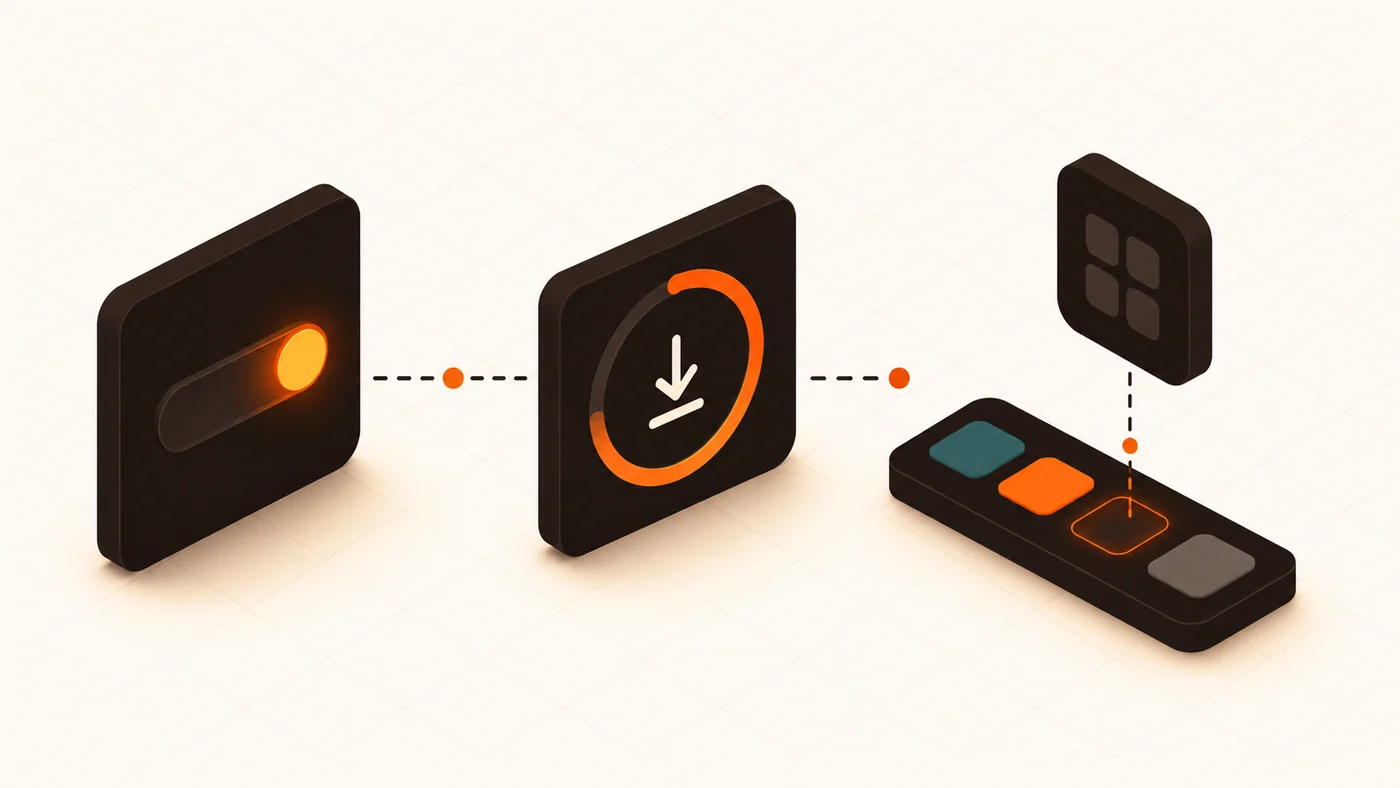
Downloader is a free app published by AFTVnews, and it sits in the Amazon Appstore quite legitimately. Its job is simple: fetch a file from a web address and hand it to the installer.
If Downloader refuses to install anything later, it is almost always because step 1 was granted to a different app. Go back into Install unknown apps and confirm the toggle next to Downloader specifically is on.
Now pick a player. The two that matter on a Firestick:
| TiviMate | IPTV Smarters Pro | |
|---|---|---|
| Feels like | A television | A streaming app |
| TV guide | Excellent grid EPG | Basic |
| Films & series | Adequate | Better browsing |
| Recording | Yes (paid tier) | No |
| Multiple playlists | Yes (paid tier) | Yes |
| Price | Free, or a one-off premium | Free |
| Best for | Live TV and sport | Mixed live and on-demand |
Install one, not four. Every player caches the full catalogue separately, and a stick with three players installed runs out of storage and starts stuttering for reasons that look exactly like a provider problem. The full side-by-side is in TiviMate vs IPTV Smarters Pro.
To install:
Repackaged APKs from random file hosts are a real risk, and a genuinely free “premium unlocked” build of a paid app is not free — you are paying with whatever else is bundled inside it. If a provider sends you an APK, ask why it is not the developer’s official one.
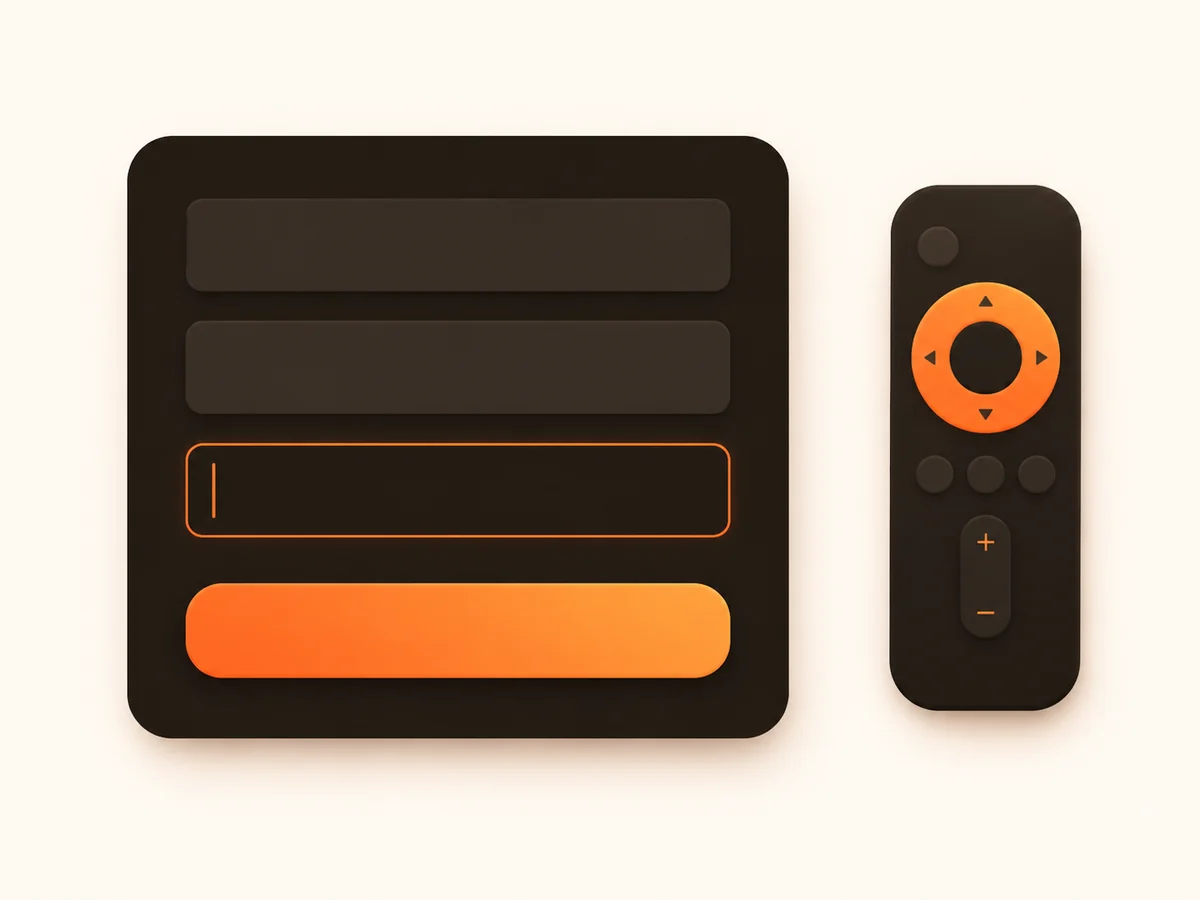
Open the player. It will ask how you want to connect.
With Xtream Codes — choose the “Xtream Codes API” or “Login with Xtream Codes” option, then enter the server URL including its port (the :8080 part is not a typo, do not drop it), your username and your password. Give it a name you will recognise and confirm.
With an M3U link — choose “M3U playlist” or “Add playlist”, paste the full link, and if you were also given an EPG address, add it in the guide or EPG field. Without that second link your programme guide stays empty.
The first load takes a while — anywhere from twenty seconds to two minutes on a large catalogue, because the app is building its local index. That happens once. If it happens every single launch, your stick is out of storage; skip to the maintenance section.
Once channels appear, spend five minutes hiding the categories you will never watch. On a 70,000-channel line this is the difference between a usable interface and an endless scroll, and it is stored on the device so it costs you nothing.
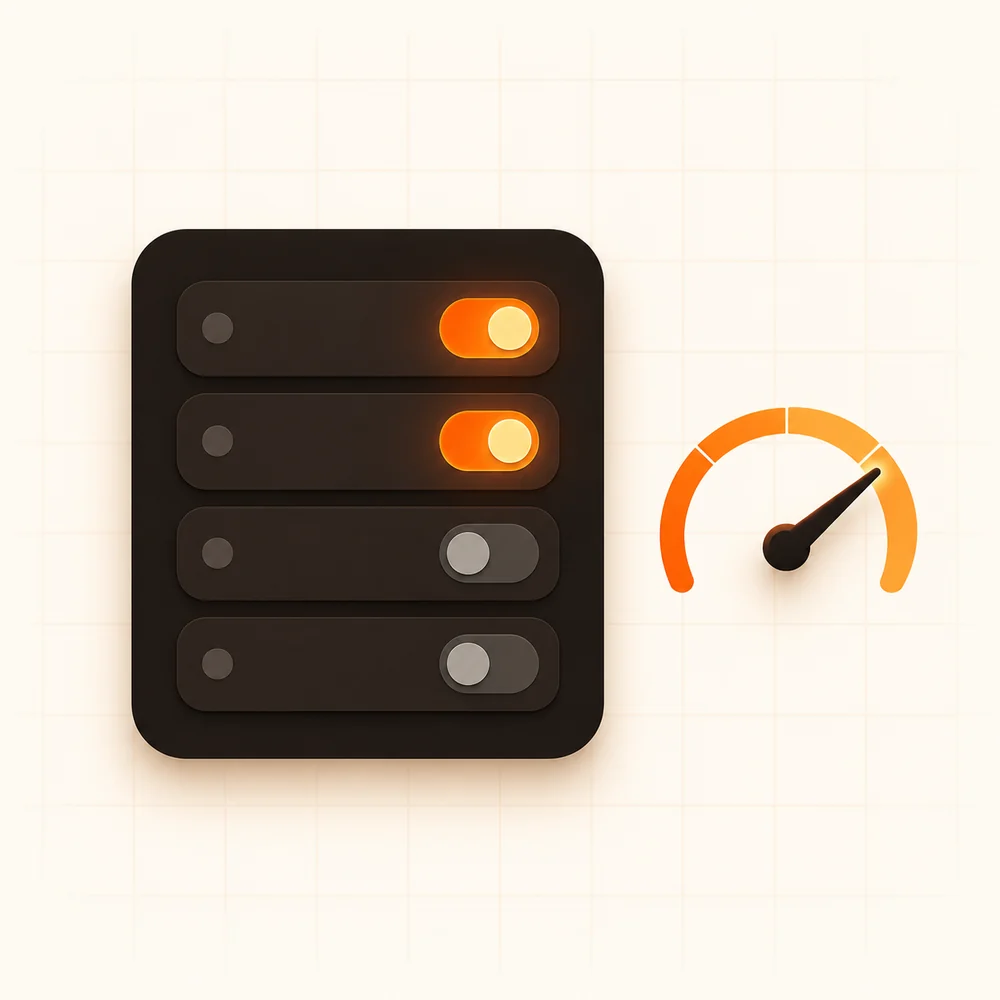
This is the part almost every tutorial skips, and it is the part that determines whether people blame their provider a week later.
If problems survive all five, the diagnostic order in why your IPTV keeps buffering picks up exactly where this list stops.
| Model | Good for IPTV? | Notes |
|---|---|---|
| Fire TV Stick 4K Max | Best choice | Most RAM, Wi-Fi 6, handles huge catalogues without lag |
| Fire TV Stick 4K | Very good | Fine for almost everyone, including 4K sport |
| Fire TV Cube | Excellent | Ethernet port — the most stable option if you can cable it |
| Fire TV Stick (3rd gen) | Workable | HD is smooth; very large VOD lists feel slow |
| Fire TV Stick Lite | Marginal | Least memory, no 4K — one player only, hide unused categories |
| 2nd gen and older | Replace it | Modern players are heavier than this hardware expects |
An Ethernet adapter for a stick costs about fifteen dollars and is the highest-value upgrade in this entire guide. Wired removes Wi-Fi from the equation permanently, which matters most during live sport, when everyone in the building is streaming at once.
Either storage is full, or an older copy of the same app is still present. Uninstall the old version first — Settings > Applications > Manage installed applications — then install again. If storage is the cause, clearing the cache on Prime Video and the Appstore usually frees enough.
Four characters cause nearly all of these: a zero read as a capital O, a capital I read as a lowercase L, a hyphen typed as an underscore, and an invisible trailing space that a phone keyboard added when you copied. Paste instead of typing, and check the end of every field.
On an M3U setup the EPG is a second URL you have to add separately. On an Xtream setup, allow up to an hour after the first login, then check the EPG time offset in the player’s settings before reporting it.
That result is genuinely useful: it eliminates your provider entirely. The stream is fine — the difference is the device. Work through the five settings above, starting with the Wi-Fi band and the decoder.
Almost always memory. Clear the player’s cache, restart the stick from Settings > My Fire TV > Restart rather than pulling the plug, and remove any other IPTV apps you installed while testing.
Firesticks slow down over time, and it is rarely the fault of the IPTV service. Three habits keep one healthy:
The same principles apply on any Android-based streamer, incidentally, and any competent provider — ourselves, Strimo IPTV, KiloTV or Imax IPTV — will tell you the same thing. A provider who blames your Firestick for everything, or blames nothing at all, is equally worth being sceptical of.
Send us a message with your Firestick model and we will walk you through it live — or take the free 24-hour trial first and judge the picture on your own television before paying anything.
The 4K Max. More memory, a faster chip and Wi-Fi 6, which between them remove most of the stutter people attribute to their provider. The Cube is better still if you can run a network cable to it.
Not for the installation. Some people run one because their ISP throttles video traffic, and in that specific case it helps. It will not fix weak Wi-Fi or an overloaded server, and a poorly chosen VPN location can make buffering worse than it was.
Yes — everything above happens on the stick itself. No computer, no USB drive, no rooting.
No. Unknown sources is a documented Fire OS setting. The device is not modified and a factory reset returns it to standard.
That depends on your connection limit, not on the Firestick. You can install the app on as many devices as you like; what is capped is how many streams play at the same time. Our plans are on the pricing page.
Sideloaded apps occasionally vanish after a major Fire OS update. Reinstall through Downloader — your playlist is usually still there, and if not, re-adding the line takes a minute.
In short: allow unknown sources, install Downloader, sideload one player, paste your line, then spend two minutes on the decoder and the Wi-Fi band. That last two minutes is what separates a Firestick people love from one they blame.
Every step above works the same way whoever your provider is — the only thing that changes is the line you paste into the app. If you are still choosing, these are the ones worth comparing.
You move, and the television stops being yours. The news is in a language your parents do not speak, the football is…
Read the guide
Buffering is a symptom, not a cause. Before you blame your provider or your internet, there is a diagnostic order that narrows…
Read the guide
Both get you watching. Only one gives you categories, a working TV guide, and a browsable film library with posters. If nobody…
Read the guide